
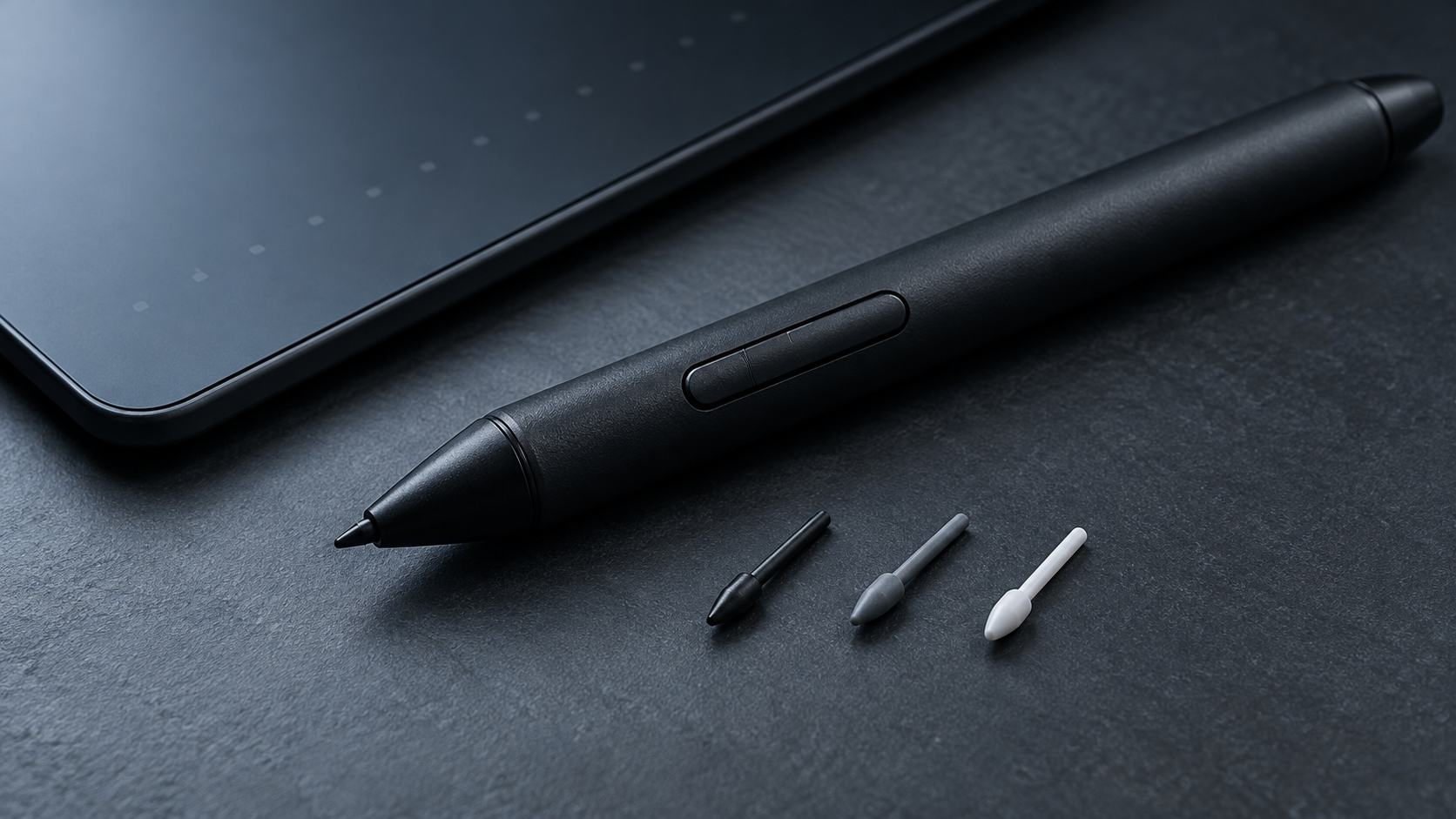
Why Wacom nibs matter more than most people think
Wacom nibs are the small replaceable tips at the end of every Wacom pen, and they wear down just like a pencil lead or a stick of charcoal. Wacom itself compares them to traditional media: the tip is meant to wear, so the surface of your pen display or pen tablet doesn’t. Replacing a worn nib on time keeps the pen feeling right and protects the drawing surface.
The catch is that Wacom has several pen generations, and their nibs are not interchangeable. A felt nib that suits one tablet can be the wrong choice on another. This guide covers the nib types, which nibs fit which pen, when to change them and how to make them last, so UAE designers, studios, students and schools can order the right part the first time.
The main types of Wacom nibs
Wacom makes nibs in a few materials. Each one changes how the pen feels on the surface.
- Standard nibs. The black plastic nib that ships with most Wacom pens. Wacom describes the Pro Pen 3 standard nib as giving moderate resistance and good writing comfort. It is the safe default for every model.
- Felt nibs. A felt core with more friction, for a paper-and-pencil feel. Many illustrators like them for sketching. They wear faster than plastic nibs, and they are not recommended on every display (see below).
- Rubber or elastomer nibs. A soft, smooth feel. Wacom offers Pro Pen 3 rubber nibs for the Wacom Intuos Pro (2025) and elastomer nibs for the Wacom One pen, but it advises against them on some devices.
- Flex nibs. An alternative feel offered for the Intuos-generation pens, such as the Pen 4K and the 2K pen.
Specialist pens such as the Art Pen 2 have their own nib sets, so always match the nib to the pen, not just to the tablet.
Which Wacom nibs fit which pen
The pen decides the nib. Wacom confirms that the Pro Pen 3 uses a new nib design and size, so older nibs don’t fit it, and the Pro Pen 2 likewise doesn’t take nibs from earlier pens. Use this table, based on Wacom’s support articles and accessory compatibility lists, to find your part numbers.
| Pen | Supplied with | Compatible nibs (Wacom part numbers) |
|---|---|---|
| Wacom Pro Pen 3 | Cintiq Pro 17, 22 and 27, Cintiq 24 (DTK246, DTH246), Movink 13, Intuos Pro (2025: PTK470, PTK670, PTK870) | Standard ACK24801Z (5 pack), Felt ACK24819Z (10 pack), Rubber ACK253010Z (5 pack, listed for Intuos Pro 2025) |
| Wacom Pro Pen 2 | Cintiq 16 (DTK1660), Cintiq 22 (DTK2260), Intuos Pro (2017: PTH460, PTH660, PTH860) | Standard ACK22201 (5 pack) or ACK22211 (10 pack), Felt ACK22203 (5 pack) or ACK22213 (10 pack) |
| Wacom One Standard Pen (CP92303B2Z) | Wacom One 12 and 13 Touch pen displays, Wacom One pen tablets S and M (2023) | Standard ACK24911Z, Felt ACK24919Z, Elastomer ACK24918Z (10 packs) |
| Wacom Pen 4K (LP1100K) | Wacom Intuos (CTL4100, CTL6100) | Standard ACK20001, Hard Felt ACK20003, Flex ACK20004 (5 packs) |
| Wacom 2K pen (LP190K) | One by Wacom (CTL472, CTL672) | Standard ACK20001, Hard Felt ACK20003, Flex ACK20004 (5 packs) |
If your device is not in the table, check the pen model printed on the barrel or in the manual before ordering. For a model-by-model view of current Wacom creative devices, see our Wacom drawing tablets range and the Wacom pen display line-up.
Felt and rubber nibs: where Wacom says not to use them
Not every nib suits every surface. Wacom’s own guidance is specific, and it is worth following because the wrong nib can mark or scratch a screen.
- Cintiq 16 and Cintiq 22: Wacom strongly recommends against felt nibs because of the risk of scratching the glass, and recommends only the Pro Pen 2 standard nib (ACK22211). See the Wacom Cintiq 16 and Wacom Cintiq 22.
- Movink 13: Pro Pen 3 standard and felt nibs are compatible. Wacom does not recommend elastomer nibs because they may leave a mark on the display surface.
- Cintiq Pro 17, 22 and 27: Wacom lists Pro Pen 3 standard (ACK24801Z) and felt (ACK24819Z) nibs as the replacements. See the Wacom Cintiq Pro 27.
- Wacom One pen tablets: Wacom does not recommend elastomer nibs because they may wear faster than the other nibs. Use the standard or felt nib.
- Intuos Pro (2025): all three Pro Pen 3 nibs are listed as compatible, including the rubber nib with its soft, smooth feel. See the Wacom Intuos Pro Medium.
When in doubt, stay with the standard nib. It is the one Wacom ships in the box and recommends across its displays.
When to replace a Wacom nib
Wacom’s user help gives a clear rule: replace the pen nib when it is about 1 mm (1/25 inch) long or has a sharp edge. Wacom also warns that a worn nib that is not replaced can damage the device, because a flat or sharp edge rubs on the surface instead of gliding.
Signs it is time for a new nib:
- The nib looks short, or it has worn flat at an angle and shows a sharp rim.
- The nib is getting hard to grip with the remover. If you wait too long, it can be difficult to pull out.
How fast a nib wears depends on the surface texture, how hard you press and how many repeated strokes you make. A heavy-handed artist hatching all day will go through nibs much faster than a student taking notes, and felt nibs wear faster than plastic ones.
How to replace a Wacom nib in four steps
1. Find the nib remover
Many Wacom devices come with a round metal nib removal tool in the box. Others have a built-in remover, which Wacom places in different spots depending on the model: on the bottom of the pen stand, on a removable pen holder on the side of the device, under one of the built-in stand legs, inside the pen or inside the pen holder.
2. Find the spare nibs
Spare nibs are usually in the box. If not, check inside the pen (if it comes apart), the pen case, a compartment cover on the back of the device, inside the pen stand (unscrew it) or under the stand legs. On the Cintiq Pro 17, 22 and 27, Wacom ships spare nibs in paper envelopes stored in the pen tray.
3. Pull out the old nib
Grip the worn nib with the remover and pull it straight out of the pen.
4. Insert the new nib
Slide the end of the new nib straight into the barrel, then push it in slowly and firmly until it stops. Test a few strokes with light and heavy pressure to check the feel.
How to make Wacom nibs last longer
- Lighten your touch. Use the tip feel or pressure setting in the Wacom driver so you reach full pressure with less force. Get the latest driver from our Wacom drivers and downloads page.
- Change your fill technique. Filling large areas with hundreds of back-and-forth strokes wears nibs fast. Use fill or lasso tools for flat areas.
- Match the nib to the job. Felt nibs give more bite but wear faster. Keep standard nibs for long inking or retouching sessions.
- Keep spares at every desk. In a studio, classroom or university lab, a pack of the right nibs per workstation avoids pens being used past the point where they can mark the surface.
- Keep the surface clean. Dust or grit between the nib and the surface adds wear to both.
Buying Wacom nibs for studios, schools and teams in the UAE
For a single artist, a pack of standard nibs usually lasts a long time. For a design studio, an architecture firm or a university lab with many pens in daily use, it pays to standardise. List each device and its pen generation, then order the matching packs so nobody fits a Pro Pen 2 nib into a Pro Pen 3 or a felt nib onto a Cintiq 22.
If you are still choosing hardware, our comparison of the Wacom Movink 13 and Intuos Pro Small and our look at the Wacom Cintiq Pro 27 explain which pen ships with each device. Entry-level setups such as the Wacom Intuos Small and the Wacom One 13 Touch use their own nib families, so plan spares for each.
eTOP Trading is an Authorized Wacom Solution Provider in the UAE and can help you match pens, nibs and accessories to the Wacom devices already on your desks.
Frequently Asked Questions
Are all Wacom nibs the same?
No. Each pen generation uses its own nib size and design. Pro Pen 3, Pro Pen 2, the Wacom One pen and the Intuos-generation pens (Pen 4K and 2K pen) each take their own nibs, and Wacom confirms that older nibs do not fit the Pro Pen 2 or Pro Pen 3.
Can I use Pro Pen 2 nibs in the Pro Pen 3?
No. Wacom states that the Pro Pen 3 uses a new nib design and size, so nibs for previous pens are not compatible. Use Pro Pen 3 standard (ACK24801Z), felt (ACK24819Z) or, where listed, rubber (ACK253010Z) nibs.
How often should I replace my Wacom nib?
There is no fixed schedule because wear depends on pressure, surface texture and drawing style. Wacom recommends replacing the nib when it is about 1 mm long or has a sharp edge, and before it wears to a sharp point.
Can I use felt nibs on a Wacom Cintiq?
It depends on the model. Wacom strongly recommends against felt nibs on the Cintiq 16 and Cintiq 22 because they risk scratching the glass. Felt nibs are listed as replacements for the Cintiq Pro 17, 22 and 27 and are compatible with the Movink 13.
Where is the nib remover on my Wacom device?
Many devices include a round metal nib removal tool in the box. Others have a built-in remover on the bottom of the pen stand, on the pen holder, under a stand leg, or inside the pen or pen holder. Check your device's quick start guide for the exact spot.
Which nibs fit the Wacom Intuos (CTL4100 and CTL6100)?
The Wacom Pen 4K (LP1100K) supplied with the Wacom Intuos uses standard nibs ACK20001, hard felt nibs ACK20003 and flex nibs ACK20004.