
eTOP · Wacom for Business
Read, navigate and sign on one screen.
A practical guide to the Wacom DTH142E, the 14-inch pen-and-touch display for customer-facing document workflows.
Full HD IPS · 10-finger touch · Battery-free pen
The Wacom DTH142E gives customers more than a place to draw a signature. It shows the document on a 14-inch Full HD screen, accepts touch for navigation and uses a battery-free EMR pen for writing and signing. This guide explains where it fits, what to connect and which software decisions still belong to your team.
Key takeaways
- The DTH142E combines a 14-inch 1920 × 1080 IPS screen, anti-glare/anti-fingerprint glass and 10-finger touch.
- Its Wacom EMR pen needs no battery and offers 4,096 pressure levels; touch can be switched off when a pen-only interaction is preferable.
- A video-capable USB-C port provides the simplest connection. A host with HDMI and USB-A uses separate video, data and power cables.
- The display has no built-in CPU or document storage. The connected computer and signing application handle the records.
- Choose it when customers need to review and navigate a document on the signing device; a compact STU pad fits simpler signature-only counters.
What changes when the customer can see the document?
On a small signature pad, the customer may see only the signing area. The DTH142E can present the form itself on a 309 × 174 mm active area. A customer can move through a document with a finger, select a field and then use the pen to write or sign. The application on the connected computer controls what appears and where the finished document is stored.
This makes the display relevant to account-opening desks, patient intake, hotel reception and other counters where the person signing should read or confirm information first. It does not, by itself, provide a complete signing system: the driver, forms application, document storage and any approval process must be chosen and tested separately.
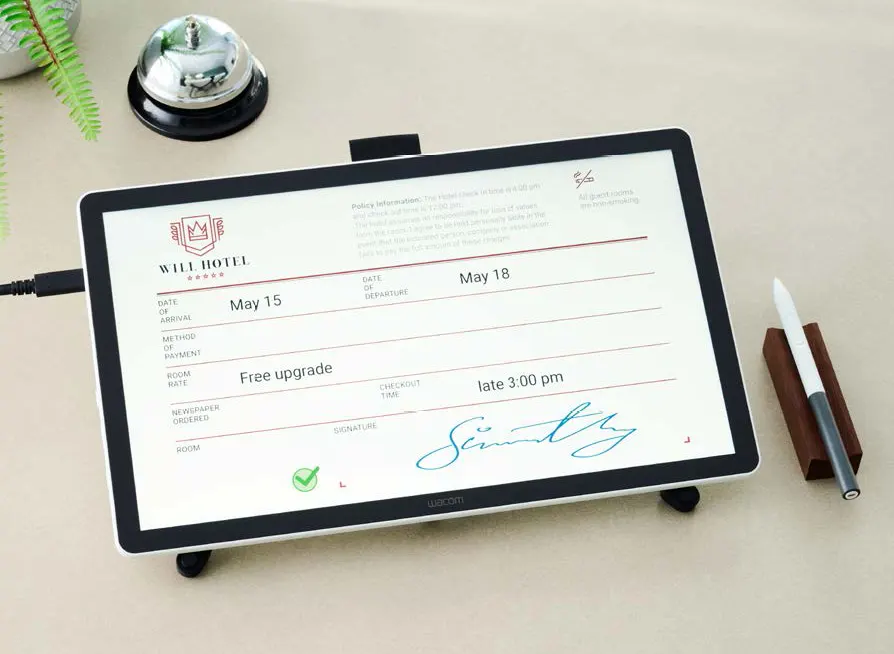
View the Wacom DTH142E product details and datasheet.
The hardware at a glance
| Display | 14.0-inch IPS LCD; 1920 × 1080 Full HD; 60 Hz |
|---|---|
| Active area | 309 × 174 mm |
| Surface | Anti-glare and anti-fingerprint glass; 98% sRGB (typical) |
| Pen and touch | Battery-free Wacom EMR; 4,096 pressure levels; 10-finger projected-capacitive touch |
| Connections | Two USB-C ports and one mini-HDMI port |
| Size and weight | 336 × 201 × 11 mm; 780 g |
| Physical security | Kensington NanoSaver lock slot |
These values come from the Wacom DTH142E manufacturer datasheet (PDF). Wacom lists Windows 10+ and macOS 13+ in its driver requirements. The datasheet also lists Linux, but driver and application support for a particular Linux deployment should be checked directly before specifying it.
Which Wacom device suits the counter?
Compact signature pads. Choose when a customer mainly signs a field and the full document stays on the operator’s screen.
A 10.1-inch Full HD pen display. Shows a document on screen, but has no finger touch.
A 14-inch Full HD display with pen and touch. Choose when customers need to read, scroll, fill and sign on one surface.
A larger 16-inch WQXGA business pen display. Consider when the document view and working area matter more than touch.
| Model | What the customer sees | Finger touch | Best starting point |
|---|---|---|---|
| STU-430 / STU-540 | Small signing display | No | Signature capture |
| DTU-1141B | 10.1-inch Full HD document view | No | Compact document signing |
| DTH142E | 14-inch Full HD document view | Yes | Review, navigation and signing |
| DTK168E | 16-inch WQXGA work area | No | Larger pen-based document workflows |
The comparison is about workflow, not a blanket ranking. See Wacom’s STU and DTU brochure, the DTU-1141B datasheet and Wacom’s business pen-display range for the manufacturer’s model information.
Connecting the DTH142E: two routes
Start with the ports on the host computer. The cables supplied with the DTH142E support two practical layouts. Both need the Wacom driver and a compatible application.
ROUTE 1 · USB-C
Video-capable USB-C host
Computer with DisplayPort Alt Mode → USB-C-to-C cable → DTH142E. The cable carries the video signal and pen/touch data. The port must also provide enough power, or the adapter is needed.
ROUTE 2 · HDMI + USB-A
Separate picture, data and power
Computer HDMI → mini-HDMI-to-HDMI cable → display picture. Computer USB-A → USB-A-to-C cable → pen/touch data. AC adapter → display power.
Route 1: install with a USB-C host
- Confirm that the computer’s USB-C port supports DisplayPort Alt Mode for video output.
- Use the supplied USB-C-to-C cable to connect the host and the DTH142E.
- Power on the display. If the host cannot deliver sufficient power, use the supplied AC adapter as described in Wacom’s setup guide.
- Install a compatible Wacom driver, then test pen input, touch and your signing application.
Route 2: install with HDMI and USB-A
- Connect the supplied mini-HDMI-to-HDMI cable for the display image.
- Connect the supplied USB-A-to-C cable for pen and touch input.
- Connect the AC adapter for power, then switch the display on.
- Install the Wacom driver and test the actual form workflow, including touch on/off.
Deployment check: the DTH142E datasheet lists the driver requirement and all three supplied cable types. Use Wacom’s driver page to select the current package for the host operating system. Do not assume that every USB-C port carries video.
The application matters as much as the display
The display supplies a pen, touch surface and screen. It does not create a legally complete signing process by itself. Your application presents the document, captures the input, defines the signature method and stores the result. Wacom lists sign pro PDF and its Signature SDK as compatible options; software licensing and integration need to be specified separately.
For a multi-site rollout, test the real document and host image at one counter first. Check screen scaling, touch gestures, pen placement, driver permissions, where records are saved and how staff hand the device to customers. The DTH142E has no built-in CPU or document storage, so the host and application remain the centre of the data workflow.
Frequently Asked Questions
What is the Wacom DTH142E used for?
It is a 14-inch pen-and-touch display for reading, annotating and signing electronic documents on a connected computer. The application determines the form and storage workflow.
How is it different from an STU signature pad?
An STU pad is compact and focused on capturing a signature. The DTH142E shows a much larger document view and adds finger touch for navigation.
Can I connect it with one USB-C cable?
Yes, if the host’s USB-C port supports DisplayPort Alt Mode and supplies enough power. Otherwise use the adapter or the HDMI plus USB-A route.
Does it need the Wacom driver?
Wacom lists a compatible driver as required for full functionality. Select the current Windows or macOS package for the host and test the signing application after installation.
Does the pen need charging?
No. Wacom specifies a battery-free EMR pen with 4,096 pressure levels.
Does the device keep a copy of the document?
No. Wacom says it has no built-in memory or storage. The connected computer and application handle the document and resulting records.
Can eTOP help with a business deployment?
Yes. eTOP can discuss the model choice, host connection, Wacom software options and integration requirements for a proposed workflow.
ملخص بالعربية
شاشة Wacom DTH142E مقاس 14 بوصة مخصّصة لعرض المستندات والتفاعل معها والتوقيع عليها باستخدام قلم Wacom الذي لا يحتاج إلى بطارية. توفّر الشاشة دقة Full HD وإمكانية اللمس المتعدد، وتتصل بجهاز كمبيوتر عبر منفذ USB-C يدعم إخراج الفيديو، أو عبر HDMI وUSB-A مع محوّل الطاقة.
الجهاز لا يخزّن المستندات داخلياً؛ إذ يتولى الكمبيوتر وبرنامج التوقيع عرض الملفات وحفظها. يمكن لفريق eTOP مساعدتك في اختيار طريقة التوصيل ومراجعة متطلبات البرنامج وسير العمل قبل النشر.
Manufacturer sources
- Wacom DTH142E datasheet (PDF) — dimensions, display, pen, touch, ports, box contents and storage statement.
- Wacom business pen displays — range and model positioning.
- Wacom signature-solutions brochure — STU and DTU comparison.
- Wacom DTU-1141B datasheet — display and touch comparison.
- Wacom driver installation guide — driver setup.
Ask eTOP about the DTH142E
Planning a better signing counter?
Tell us how many desks you have, which ports the host computers provide and what documents your team signs. We can help identify the right Wacom display and the connection and software questions to resolve.