
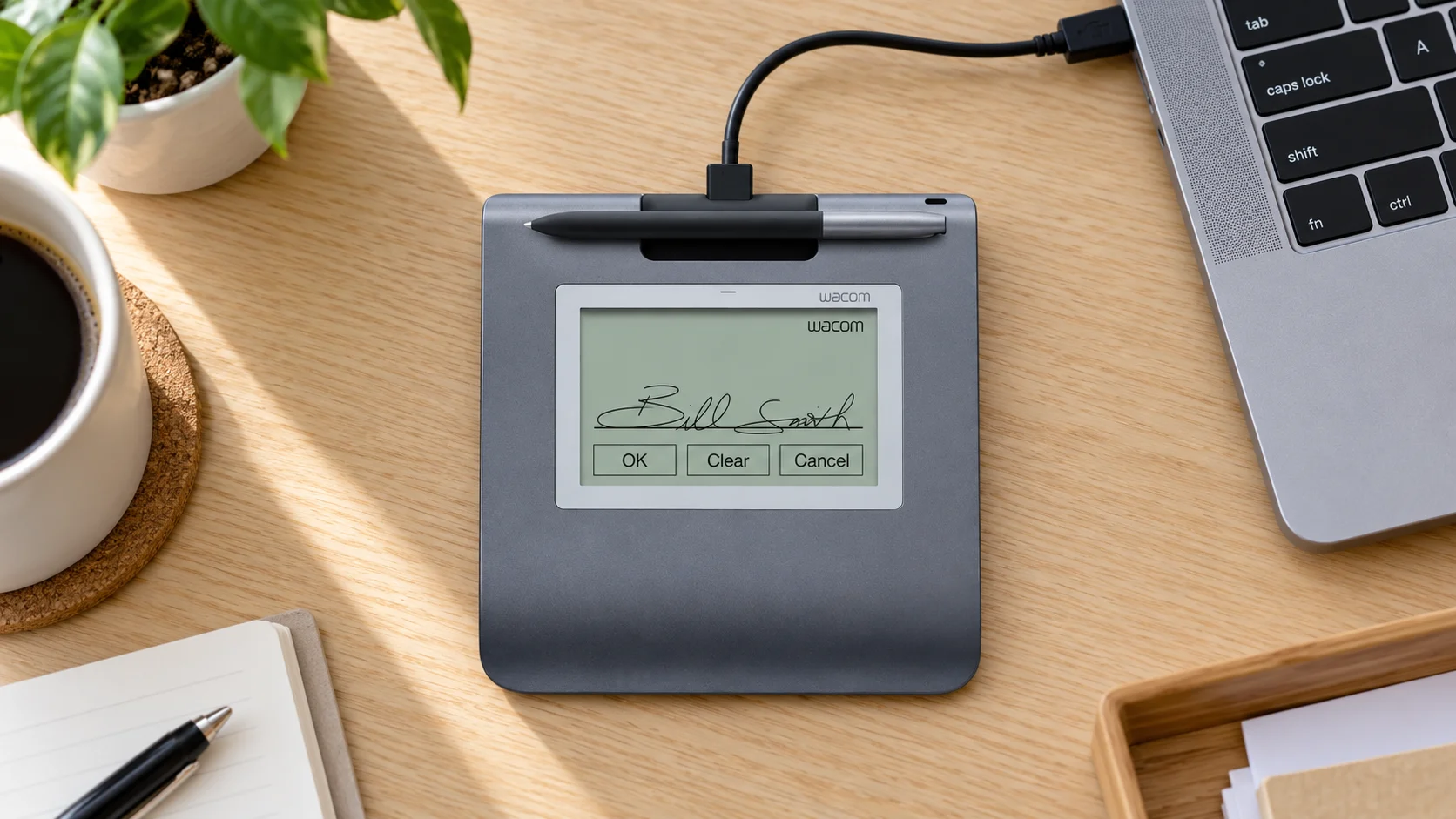
What Is the Wacom STU-430 Signature Pad?
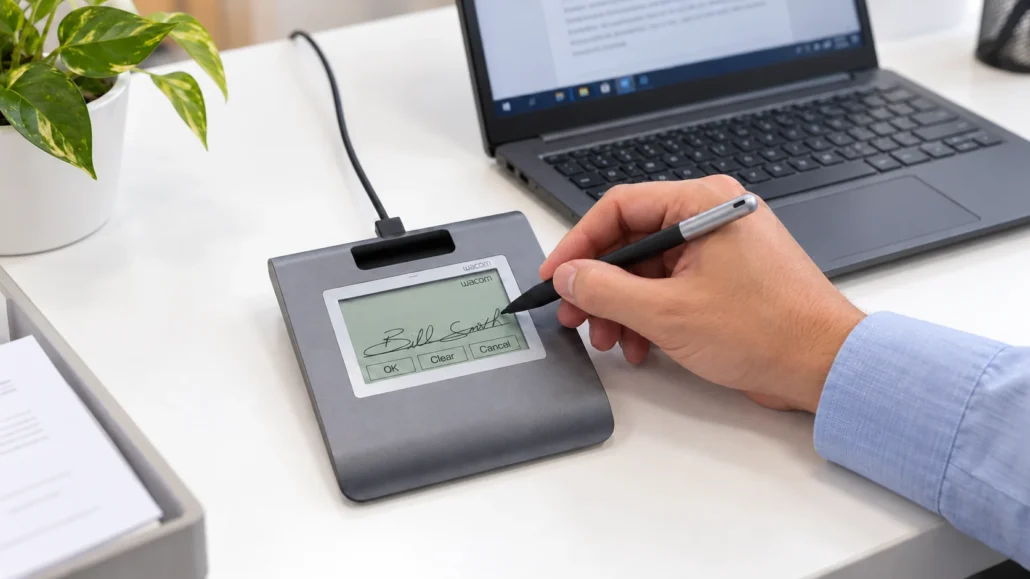
The STU-430 is a 4.5-inch monochrome signature pad that captures handwritten electronic signatures at the point of service. The customer reads the document on the workstation screen and signs on the pad. Signature software then embeds the signature, together with its biometric data, into the document or business record.
Wacom describes it as a versatile, full-featured signature pad with a thin design and a low-profile surface. The screen is large enough for longer signatures and can also show soft buttons such as OK, Clear and Cancel beside the signing area.
STU-430 vs STU-430-CH2: What Is the Difference?
The hardware is the same. The difference is software:
- STU-430 is the signature pad on its own. It needs signing software, either an existing application that already supports Wacom STU pads or one your developers build with Wacom’s SDKs.
- STU-430-CH2 is the signature set that combines the STU-430 with Wacom sign pro PDF for Windows, so teams can start signing PDF documents without custom development. See the Wacom STU-430-CH2 Signature Set page.
Choose the CH2 set when your workflow is PDF-based (forms, contracts, consent sheets). Choose the standalone pad when the signature has to be captured inside a core banking, hospital information or CRM system that you integrate through the SDK.
Wacom STU-430 Specifications
The values below are taken from Wacom’s official STU-430 datasheet.
| Specification | Wacom STU-430 |
|---|---|
| Display | 4.5-inch monochrome F-STN positive reflective LCD |
| Native resolution | 320 x 200 pixels |
| Cover surface | Tempered, scratch-resistant hardened glass |
| Active area | 96 x 60 mm |
| Pen technology | Electromagnetic Resonance (EMR), cordless and battery-free pen |
| Pressure levels | 1024 (non-interpolated) |
| Coordinate resolution | 2540 lpi / 0.01 mm per point |
| Coordinate accuracy | ±0.5 mm (centre) |
| Report rate | 200 points per second |
| Encryption | AES-256 / RSA-2048 |
| Interface | USB |
| Power | USB bus powered, 1.0 W maximum, no adapter needed |
| Dimensions (W x H x D) | 162 x 174 x 11 mm |
| Weight (with stand) | 279 g |
| Operating conditions | 5 °C to 40 °C, 30% to 80% RH, non-condensing |
| In the box | Signature pad, cordless battery-free pen, 3 m USB cable, quick start guide, 50 cm pen tether |
Display and Compact Design
The reflective monochrome LCD is easy to read under varying light, including bright counters. The pad is purpose-built for signing rather than for showing full documents, which keeps its footprint small on crowded teller and registration desks. An integrated pen holder doubles as a USB cable lock, and a Kensington Security Slot lets you secure the pad to the desk.
Battery-Free EMR Pen and Biometric Capture
The STU-430 uses Wacom’s patented EMR technology with a cordless, battery-free pen, so there are no batteries to charge or replace. With compatible software, each signature is recorded with biometric data such as:
- Pen pressure across 1024 levels
- Timing and speed of each stroke, captured at 200 points per second
- Stroke path and sequence, including pen lifts
This is the data that signature verification tools compare against a stored reference. Our guide to specimen signatures explains how that comparison works.
Durability
Wacom states that the hardened cover glass was proven in testing to capture 500,000 electronic signatures with no surface wear, which matters at counters where one pad is used many times an hour.
Security and Encryption
The STU-430 encrypts signature data with AES-256 and RSA-2048 between the pad and the host application. Each pad carries a unique hardware ID (UID), so a signature can be traced to the exact unit that captured it. Wacom also notes that the pad captures signatures in real time with no internal pad memory, so signatures are not stored on the device.
How to Set Up the Wacom STU-430: Driver and Software
A common question is whether the STU-430 needs a driver. According to Wacom support:
- STU signature pads do not strictly require a driver, but Wacom recommends the Wacom STU Driver on Windows 10 systems for optimal performance. The driver is included in the Wacom SDK and is also available from Wacom’s developer support site.
- STU pads are not plug-and-play signing devices. A signing application built on Wacom SDK components has to start the signing ceremony on the pad. That can be Wacom sign pro PDF, a third-party application with Wacom integration, or your own software.
A typical setup on a Windows workstation looks like this:
- Connect the pad with the supplied USB cable. It draws power from USB, so no power point is needed.
- Install the Wacom STU Driver (recommended on Windows 10). Driver links are collected on our support and downloads page.
- Install your signing software: sign pro PDF (included in the STU-430-CH2 set) or the application your organisation uses.
- Open a document or form, place the signature field, and test a signature to confirm the pad responds and the signature is embedded.
Software and Integration Options
Wacom’s datasheet lists three routes for the STU-430:
- Wacom sign pro PDF for opening PDFs, defining signature fields and embedding biometric signatures. A sign pro PDF plug-in for Adobe Acrobat is also available. Read more in our sign pro PDF guide .
- Windows signature and eSign software from third parties that already support Wacom STU pads.
- Wacom development libraries for Windows in C++, .NET and Java, so developers can add signature capture to in-house systems. Other languages and platforms are available on request from Wacom. See our overview of Wacom Signature SDKs .
As an Authorized Wacom Solution Provider and system integrator, eTOP helps UAE organisations choose between these routes and connect the pad to existing document workflows.
Who Uses the STU-430 in the UAE?
- Banks and finance companies: account opening, KYC forms and loan documents at teller and relationship-manager desks.
- Hospitals and clinics: patient registration, consent forms and insurance sign-offs.
- Government and public service counters: applications, renewals and declarations.
- Retail and service businesses: delivery notes, service agreements, warranty cards and membership forms.
For full-document signing where the customer reads and signs on one screen, a pen display such as the DTU-1141B may be the better fit. Our guide to signing contracts in person covers that setup.
Wacom STU-430 vs STU-540
Both pads share the same pen technology, pressure levels, report rate and AES-256 / RSA-2048 encryption. The main differences are the display and connectivity.
| Feature | Wacom STU-430 | Wacom STU-540 |
|---|---|---|
| Display | 4.5-inch monochrome F-STN reflective LCD | 5-inch colour TFT LCD |
| Resolution | 320 x 200 pixels | 800 x 480 pixels |
| Active area | 96 x 60 mm | 108 x 65 mm |
| Interface | USB | USB, Virtual COM Port, RS-232 (with optional serial kit) |
| Power consumption | 1.0 W maximum | 2.5 W maximum |
| Signature set | STU-430-CH2 with sign pro PDF | STU-540-CH2 with sign pro PDF |
Choose the STU-430 if…
- The customer reads the document on the workstation screen and only needs the pad to sign.
- You are equipping many counters and want a compact, low-power USB pad.
- A monochrome display with soft buttons is enough for your signing screens.
Choose the STU-540 if…
- You want colour signing screens, branding or promotional images on the pad between signatures.
- You need serial (RS-232) or Virtual COM Port connectivity, or more options for virtual desktop environments.
See the Wacom STU-540 and STU-540-CH2 signature set pages, or our broader comparison of Wacom signature pads .
Legal Context for Electronic Signatures in the UAE
Electronic signatures in the UAE are governed by Federal Decree-Law No. 46 of 2021 on Electronic Transactions and Trust Services, which replaced Federal Law No. 1 of 2006. Signatures created through a TDRA-licensed qualified trust service provider carry the same legal effect as a handwritten signature. Other electronic signatures are admissible as evidence, and their weight depends on the process used.
A signature pad on its own does not make a signature legally valid. What counts is the full workflow: how the signer is identified, how the signature is bound to the document, how tampering is detected and how records are kept. The STU-430’s encryption, unique hardware ID and biometric data can support that evidence when used with suitable software and procedures.
Frequently Asked Questions
Does the Wacom STU-430 need a driver?
Wacom says STU signature pads do not strictly require a driver, but the Wacom STU Driver is recommended on Windows 10 for optimal performance. The driver is included in the Wacom SDK and is available from Wacom’s developer support site.
Is the Wacom STU-430 plug-and-play?
No. The pad connects over USB without a separate power supply, but it needs signing software built with Wacom SDK components, such as Wacom sign pro PDF, a third-party integration or your own application, to start a signature.
What is included in the Wacom STU-430-CH2 signature set?
The STU-430-CH2 combines the STU-430 signature pad with Wacom sign pro PDF for Windows. The STU-430 package contains the pad, a cordless battery-free pen, a 3 m USB cable, a quick start guide and a 50 cm pen tether.
What software works with the STU-430?
Wacom lists compatibility with Windows signature and eSign software, Wacom sign pro PDF and the sign pro PDF plug-in for Adobe Acrobat. Developers can use Wacom libraries for C++, .NET and Java on Windows.
What is the difference between the STU-430 and STU-540?
The STU-430 has a 4.5-inch monochrome display at 320 x 200 pixels and connects over USB. The STU-540 has a 5-inch colour display at 800 x 480 pixels and adds Virtual COM Port and RS-232 options. Both use a battery-free EMR pen with 1024 pressure levels and AES-256 / RSA-2048 encryption.
Does the STU-430 store signatures on the device?
No. Wacom’s datasheet states that the STU-430 captures signatures in real time without internal pad memory. Signatures are passed to the host software, which stores them in the document or record.
Is a signature captured on the STU-430 legally valid in the UAE?
Electronic signatures are legally recognised under UAE Federal Decree-Law No. 46 of 2021. Signatures created through a TDRA-licensed qualified trust service provider carry the same legal effect as a handwritten signature; other electronic signatures are admissible as evidence and their weight depends on the process used. The pad alone does not determine validity.